Docs / User Guide / Live Monitor
Live Monitor#
See what’s happening → understand it in plain language → inspect the technical evidence.
Open MONITOR in Controls while the C64 is on. The Monitor fills the browser window and follows your theme. Live shows the running machine. Component sections pause on a shared moment for inspection.
Start exploring#
- Open Monitor. It always starts on Live, showing the machine's parts working together.
- Choose a component card or section to capture and pause. Click the small C64 display to open Video.
- Compare sections using the same moment. Choose the play icon to watch activity, or Back to C64 to resume normal playback.
| Control | What it does |
|---|---|
| Running / Paused button | The rounded control before Live, distinct from the section buttons. Stops or continues the actual C64. Pausing takes a final live snapshot and keeps the latest completed frame available across sections. The pause icon changes to a play icon while paused. |
| Click the live display | Pauses the C64 and opens Video with the latest completed shared recording. |
| Back to C64 or Escape | Closes Monitor and resumes the machine. |
| Keyboard and control ports | Remain connected to the C64 while its display has focus. |
Monitor records a complete detailed frame about once per second while the machine runs. Pause keeps the most recent completed recording for Code, Video and the captured evidence in Memory, Sound and Storage. Other sections hold that recording until another capture replaces it. Paused views reuse their snapshot, with a fresh read when input or configuration changes. Its picture can be older than the paused live display, and its recorded values are separate from the current live snapshot.
Opening Monitor while paused advances up to two PAL frames (about 40 ms of emulated time) to record one complete frame, then stays paused. Sections share that recording without advancing again. Closing releases it.
If you pause inside Monitor before its first recording finishes, resume briefly to record one. Replay never advances the machine. Resetting or restoring allows automatic recording to continue while it runs.
Choose a section#
Every section uses the same open workspace. Subtle surfaces group components, while simple dividers separate observations from their explanations and evidence.
On phones, scroll within a section to reach its details. Video stacks the picture above its inspector. Sound uses stacked voice cards, with SID 1 and SID 2 buttons to switch chips. Compact tablets also show one SID at a time.
| Section | Start here to understand… | Go deeper with… |
|---|---|---|
| Live | How the machine's parts work together | Choose Inspect or About. |
| Code | What the program changes during a frame | Register writes, cycle budgets, assembly and interrupts. |
| Memory | Where data is changing in RAM | Hex bytes, graphics interpretations and captured RAM. |
| Video | How the picture relates to raster timing | Replay, sprites, borders, pixel sources and rules. |
| Sound | How SID voices are configured | Waveforms, envelopes, filters and captured writes. |
| Controls | How input and timers reach the machine | Keyboard matrix, both ports, paddles and CIA interrupts. |
| Storage | Which devices are attached or active | Drives, tape, cartridges and REU transfers. |
Opening a component captures and pauses on one shared moment. Switching components keeps it. Use Resume to watch activity in a component. Returning to Live resumes a pause made by navigation, while an explicit manual pause stays held. The playback button shows Running or Paused. Closing Monitor resumes playback, including a pause you made manually.
Live: the living machine#
Every card places its component label and title at the top, with Inspect and About at the bottom. The visualization fills the right third.
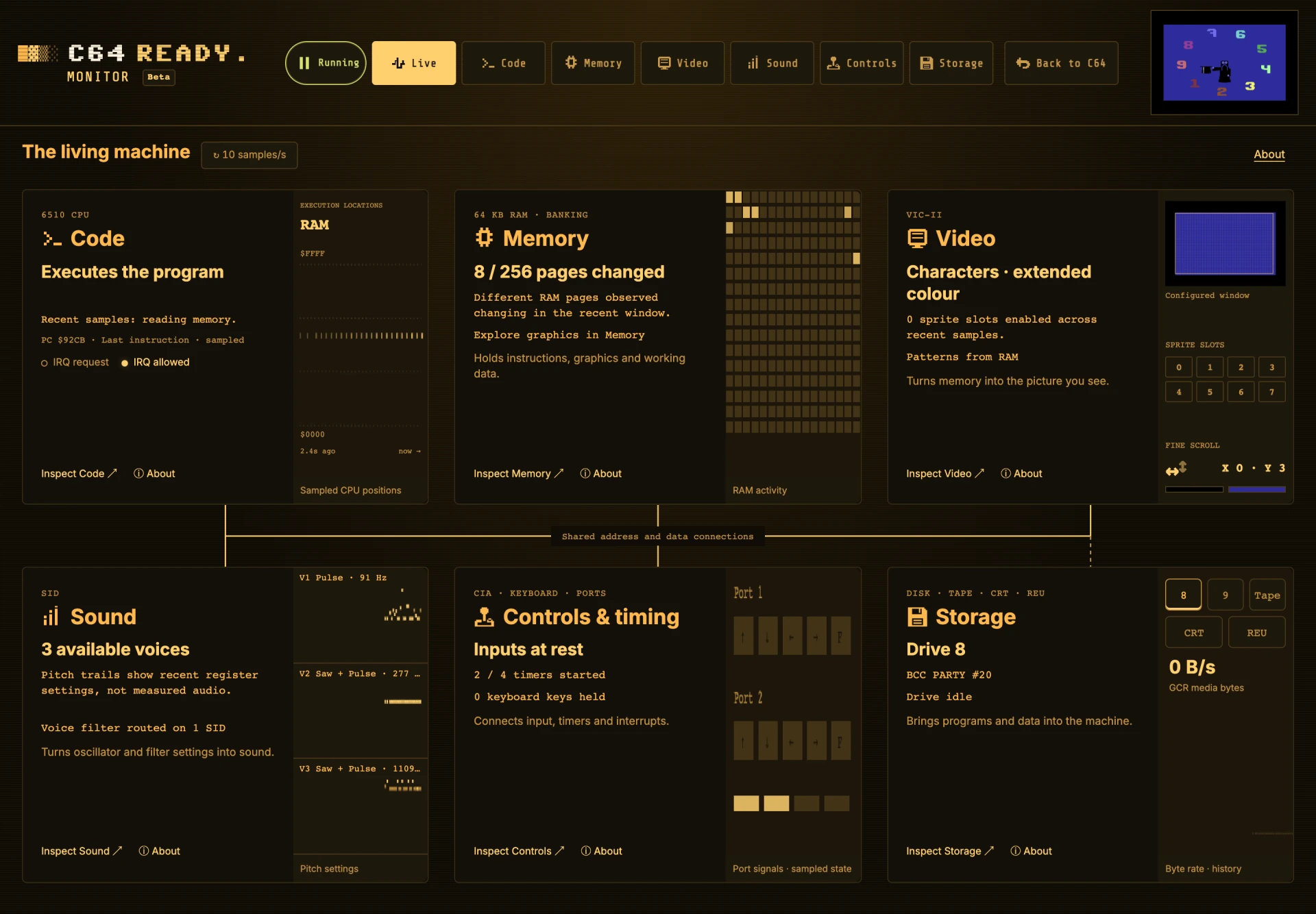
Six softly outlined cards sit directly on the open workspace, with visualizations on their right. They connect current observations to a plain explanation. Click a card or its Inspect action to open the corresponding readings. Voice buttons and storage badges open their specific targets. Storage device badges fill two rows at the top of its visual area. About opens the hardware story without changing your current section or capturing a frame.
| Card | What to look for | Component guide |
|---|---|---|
| Code | Recent instruction patterns, sampled CPU locations and IRQ request/mask indicators. | 6510 CPU |
| Memory | Changed pages and distinct byte locations. | Memory and banking |
| Video | Configured screen window, larger sprite-enable slots, fine scroll, colours. | VIC-II |
| Sound | Three or six separate pitch lanes, with voice labels at the top left. Gate settings, waveforms and voice filter routing. | SID |
| Controls & timing | Held keys, control-port signals and the four CIA timers. | CIA and controls |
| Storage | Selected device, media and observed activity. Badges open a specific device. | Disk, tape, cartridges, REU |
- One shared snapshot refreshes RAM, chip settings, controls and storage at the selected rate. Click the sampling button beside The living machine to cycle through 1 → 10 → 25 → 50 samples/s. The default is 10.
- Live descriptions summarize two-second observation windows. Histories retain every sample, while the main interface refreshes at most ten times per second. Code patterns count sampled instructions, not CPU time.
- Above 10 samples/s, Code keeps the PC without changing instruction labels, and Sound keeps simple voice labels above each channel graph. Pause restores the exact settings.
- Live trails retain up to eight seconds at every sampling rate. The Code trail plots sampled CPU positions from $0000 to $FFFF, oldest to newest. Clusters suggest repetition, not a proven loop or percentage of CPU time.
- IRQ request shows the sampled line. IRQ allowed means the CPU I flag is clear, not that an interrupt handler ran. Brief requests can occur between samples.
- The Code card shows the current PC separately from the sampled instruction address. PC can already point into an operand.
- Frame cycle budgets and detailed chip actions remain in Code and Video, tied to their captured frame.
- RAM counts show addresses whose values differ from the previous snapshot.
- Pitch settings are not audio-level meters. CPU positions are not CPU-usage measurements.
- Video fills its visual third with a proportioned screen diagram, eight sprite-enable slots, X/Y fine scroll and colour swatches. Textures illustrate character or bitmap mode, not actual program artwork.
- Sprite enable bits do not prove visible pixels. Border openings and bad-line activity belong to captured Video analysis.
- Solid lines show C64 connections. The dashed line shows external storage connections.
- The desktop overview fits one screen. Smaller windows can scroll the cards.
Inside the C64 collects the component guides in one place. Its chapters include history, connections, specification tables, things to try, primary references and links to this emulator's architecture documents. Close an About dialog with × or Escape to return to the same section.
The selected rate is saved in this browser and restored after reloads. If browser storage is unavailable, the rate lasts until the page is reloaded. Higher rates refresh the live observations more often. Detailed frame recording keeps its separate schedule, and Pause still holds the captured frame. The button sets a target rate, so a busy browser can deliver fewer samples. Monitor does not collect samples while closed or hidden. Detailed frame capture is heavier than a live snapshot and can cause a brief hitch on slower devices. Selecting a lower sample rate reduces snapshot work, but does not change the frame-recording interval.
The top-right C64 display remains live. Detailed Video and Code recordings keep their own frame identity and replay controls. They are separate from the shared state snapshot, which does not record everything that happened between samples.
A lit sprite-slot marker means enabled at some point in the latest captured frame, not necessarily moving or visible throughout it. Before a frame is available, the markers show the current sample's enable bits.
Controls: inputs and timing#
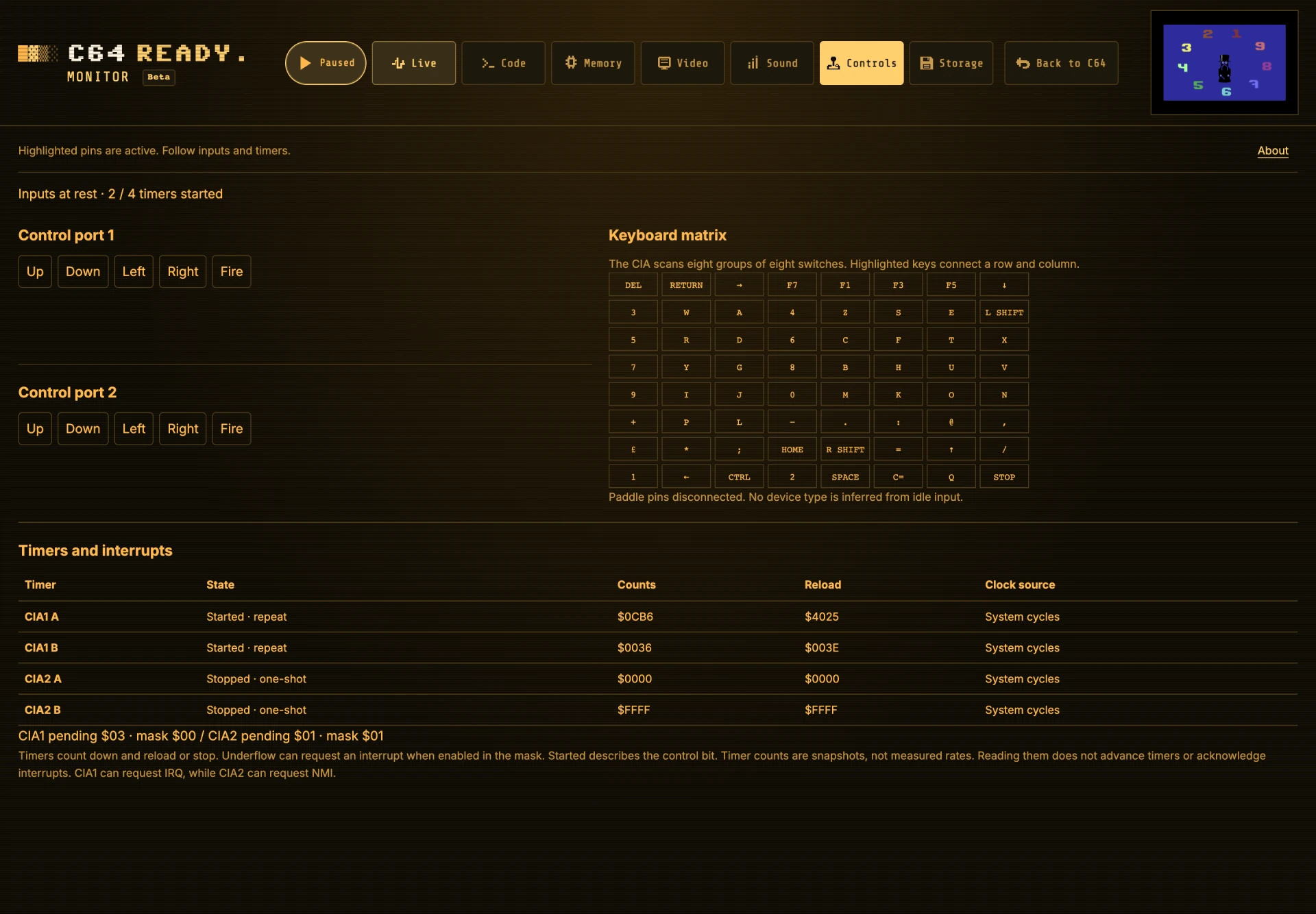
Open Controls in the header or Inspect Controls on Live.
| Reading | Meaning |
|---|---|
| Keyboard matrix | Highlighted keys close switches in the CIA's eight-by-eight matrix. |
| Control ports 1 and 2 | Highlighted direction and fire pins are low, the active state. |
| Paddle readings | SID POTX and POTY input values, without guessing the device type. |
| CIA timers | Current counts, reload values, start bits and clock selections. |
| Interrupts | Pending source bits and masks. CIA1 can request IRQ, CIA2 can request NMI. |
These readings share the selected live sampling rate. Brief presses can fall between samples. Reading this page does not acknowledge interrupts or advance timers.
Memory: find out what the bytes do#
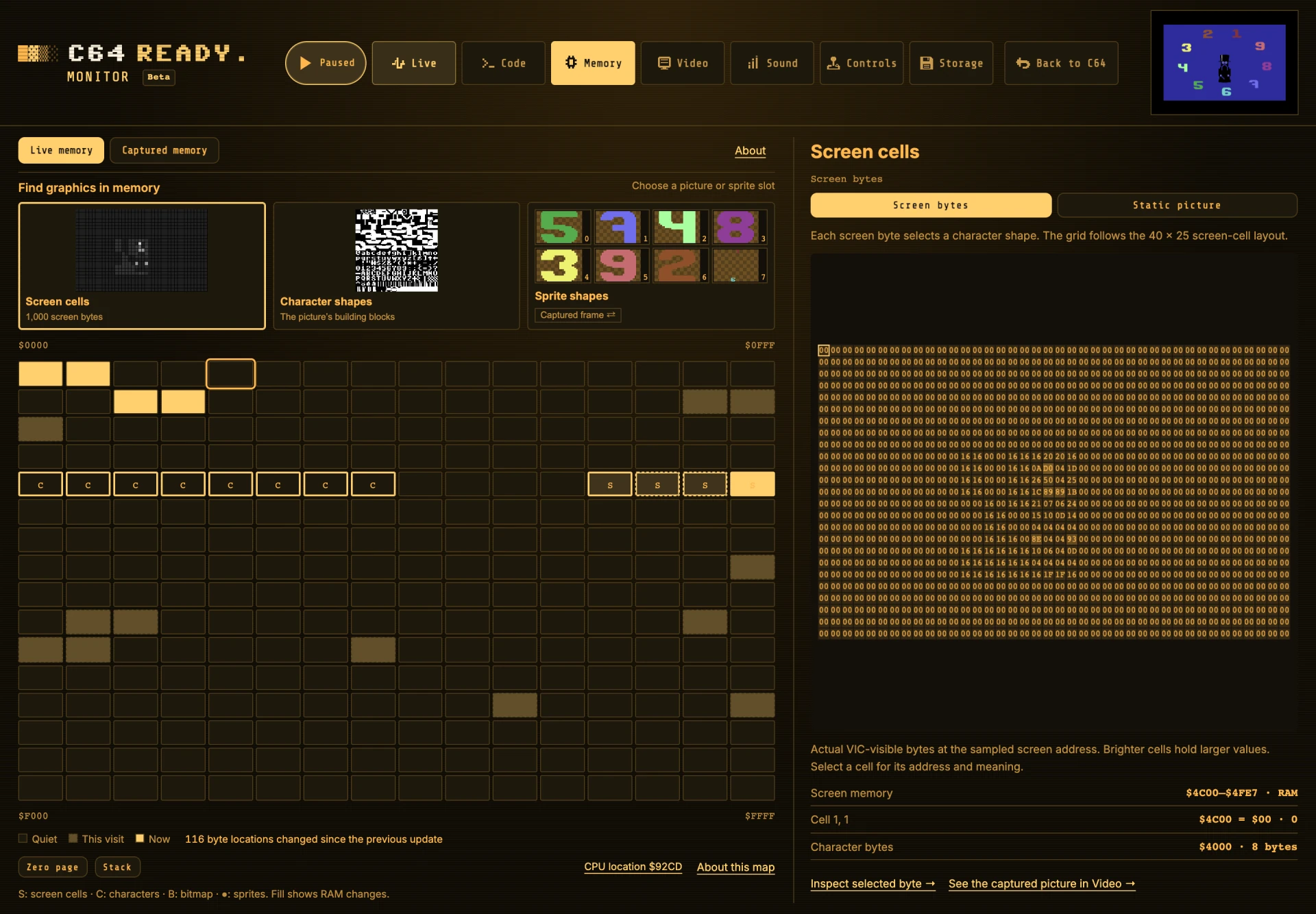
- Start with the pictures above the map: Screen cells, Character shapes or Bitmap pixels, and the eight sprite slots. Click one to find its source and decode it on the right.
- Screen cells opens a 40 × 25 grid of hexadecimal bytes. Click a cell or use arrow keys to see its address, value and character source or bitmap colour nibbles.
- Static picture optionally reconstructs the sampled settings. Raster changes can make it look scrambled. Follow the Video link to inspect the finished frame.
- Current pointers updates all eight sprite shapes on every shared sample, including disabled slots. A dashed outline and dim slot number mark disabled slots. A checkerboard makes transparent areas and black sprites easier to distinguish.
- Sprite previews default to Captured frame, showing what was visible in the shared recording. Click a captured sprite to show its recorded shape and line-end settings in the right pane. Click that preview or its link to inspect a visible pixel in Video. Choose Current pointers or Inspect current pointer bytes to inspect sampled data instead. Captured appearances update with the shared frame, not each live sample.
- Character patterns, bitmap bits and current-pointer previews decode VIC-visible memory, including character ROM. Bitmap previews show raw bits even in invalid graphics modes.
- Each square in the 64 KB RAM map represents 256 bytes. S, C, B and ● identify configured graphics regions. The selected source range is highlighted. Arrow keys move between pages.
- Bright fills show sampled RAM changes, separate from graphics-source markers.
- Unidentified pages explain what is known and suggest a graphics source to explore. They are not presented as pictures.
- Choose a manual interpretation in View, or open Hexadecimal bytes for technical inspection. Zero page, Stack and CPU location remain available.
- Switch from Live memory to Captured memory to inspect RAM at a recorded cycle. Follow its last recorded change, instruction origin and later graphics reads. Evidence lists have Previous and Next pages.
| Selected area | What the right pane shows |
|---|---|
| Screen cells | Byte grid, selected address and value, with an optional static reconstruction. |
| Configured bitmap | Raw bits with outlines around data supplied by the selected page. |
| Character patterns | The configured character set with this page's shapes outlined. |
| Sprite source | The chosen slot’s shape, colours and pointer, including slots that share a page. |
| CPU stack | Its purpose and the address of the next push. |
| Current CPU location | The sampled address, its memory source and a link to Code. |
| Other RAM | Its known role and sampled changes. Unidentified memory stays explicitly unknown. |
The map shows underlying RAM, including RAM beneath ROM and I/O. It does not show chip registers or colour RAM. Current-source links open VIC-visible bytes directly. Selecting a RAM page beneath ROM explains the distinction and offers a link to the VIC source. Map letters use the shared snapshot and describe its configuration. Video records actual matrix reads, without claiming that every read produced a visible pixel. Missing or partial read evidence is labelled explicitly. Graphics reconstructions omit raster changes, scrolling and compositing. Invalid graphics-mode combinations produce black only in the optional static picture. Byte maps and raw bitmap bits remain readable. Use Video's captured frame for changing settings and the final picture.
Code: understand the program's actions#
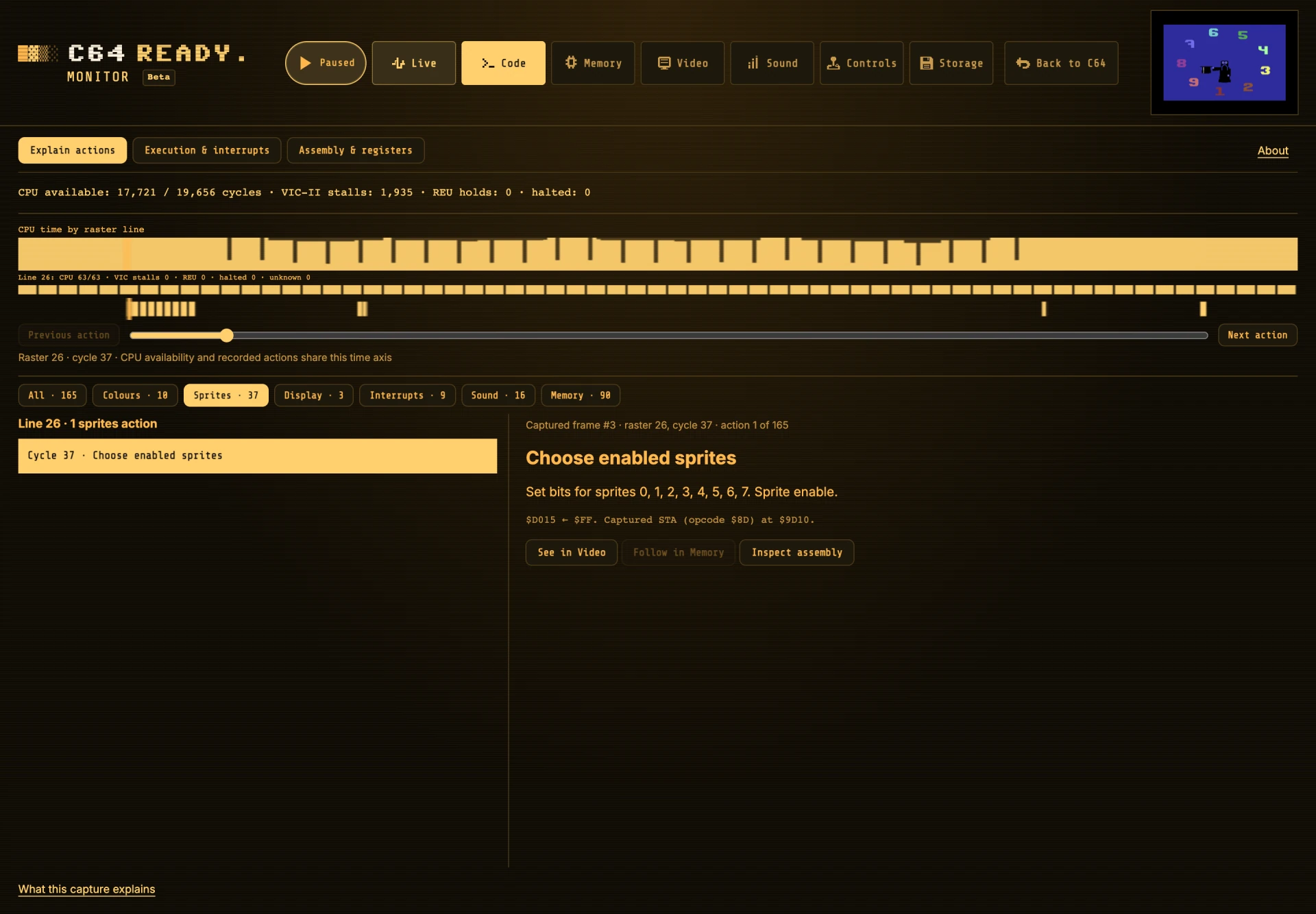
Code uses the shared recording, which refreshes while running and stays fixed while paused. Explain actions translates recorded VIC-II and SID writes and RAM changes into plain-language actions.
| Tool | How to use it |
|---|---|
| Shared frame timeline | One cursor aligns CPU availability, recorded actions and the explanation. The category and cursor stay selected across automatic frame updates. |
| Previous / Next action | Step through matching writes, including multiple actions at the same cycle. |
| See in Video | Open the same captured frame and cycle. Evidence links hold the recording. Back to… restores the previous selection, while header navigation starts a fresh route. |
| Frame cycle budget | Compare CPU-available cycles with video stalls, REU holds and halted time. |
| Raster-line map | Click a line to move the shared cursor. Its actions appear beside the explanation. |
| Execution & interrupts | A full-page Code mode for historical instruction bytes, dispatch groups, IRQ/NMI acceptance and RTI returns. Follow the same captured cycle into Video or Memory. |
| Assembly & registers | Decode current CPU-visible memory and inspect CPU registers. |
Cycles without a matching recorded action show an explicit empty state. This does not mean the CPU is idle. See in Video preserves the exact frame and cursor, including cycles without an action.
Available cycles do not mean useful work: wait loops count too. Dispatch intervals include stalls and interrupt entry. Writes do not describe every calculation or input operation.
Instruction links from captured evidence show recorded opcode and operand bytes. Missing bytes stay unknown. Following a target keeps the same recording in Memory. The ordinary assembly address field and Follow PC use current CPU-visible memory. Follow PC samples the current program counter, possibly partway through an instruction. Enter a known code address when you want decoding to start there.
Video: explore one captured frame#
Hover over the captured picture for an 8× pixel lens centred on your pointer. A single crosshair marks the centre pixel a click explains, including near the edges. The normal pointer is hidden inside the lens. The lens uses the recording and does not capture another frame. Move outside the picture to dismiss it.
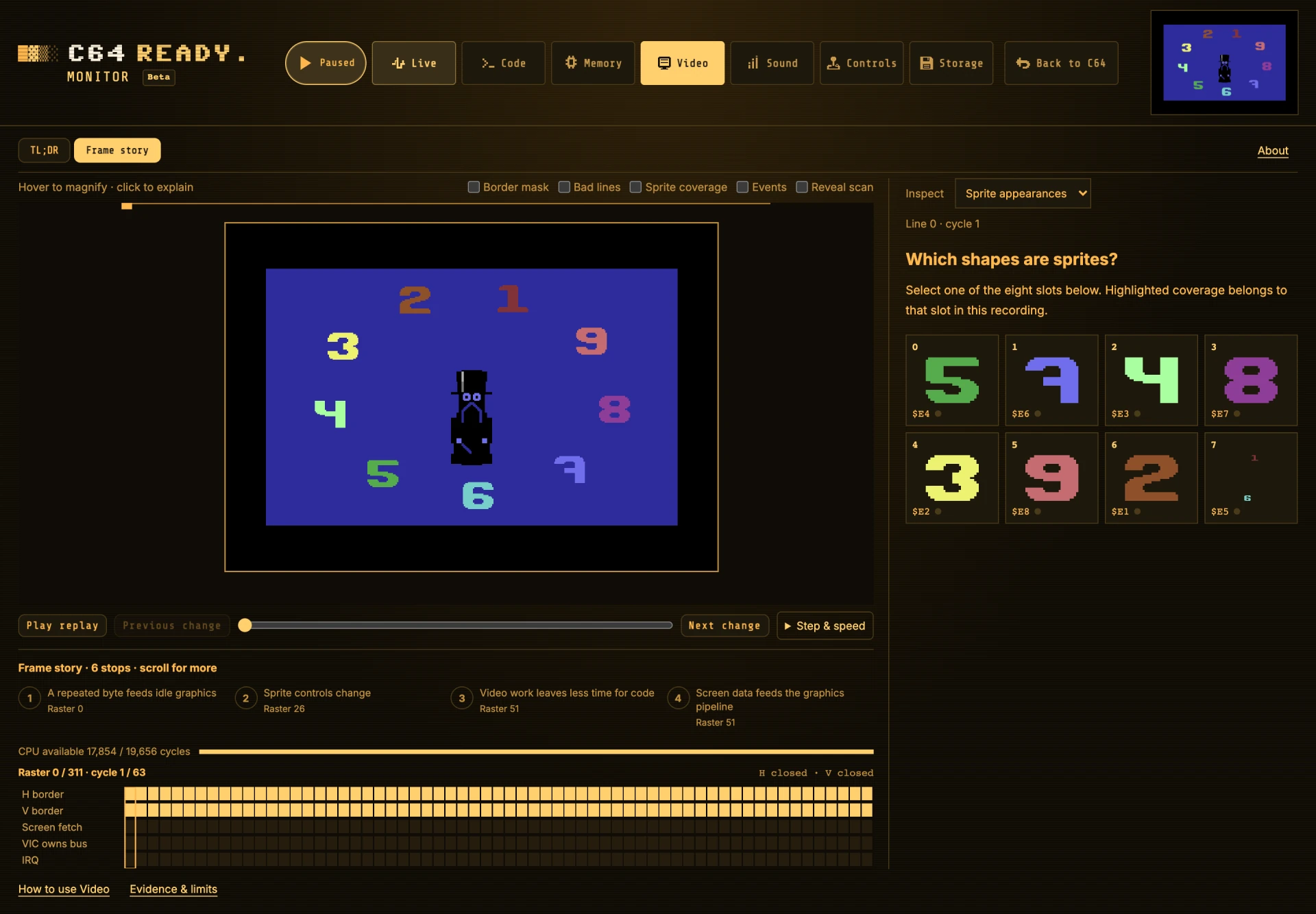
Video keeps the picture, timeline and explanation together. It uses the shared recording, which refreshes automatically while the C64 runs. Pause to hold it.
Start with TL;DR#
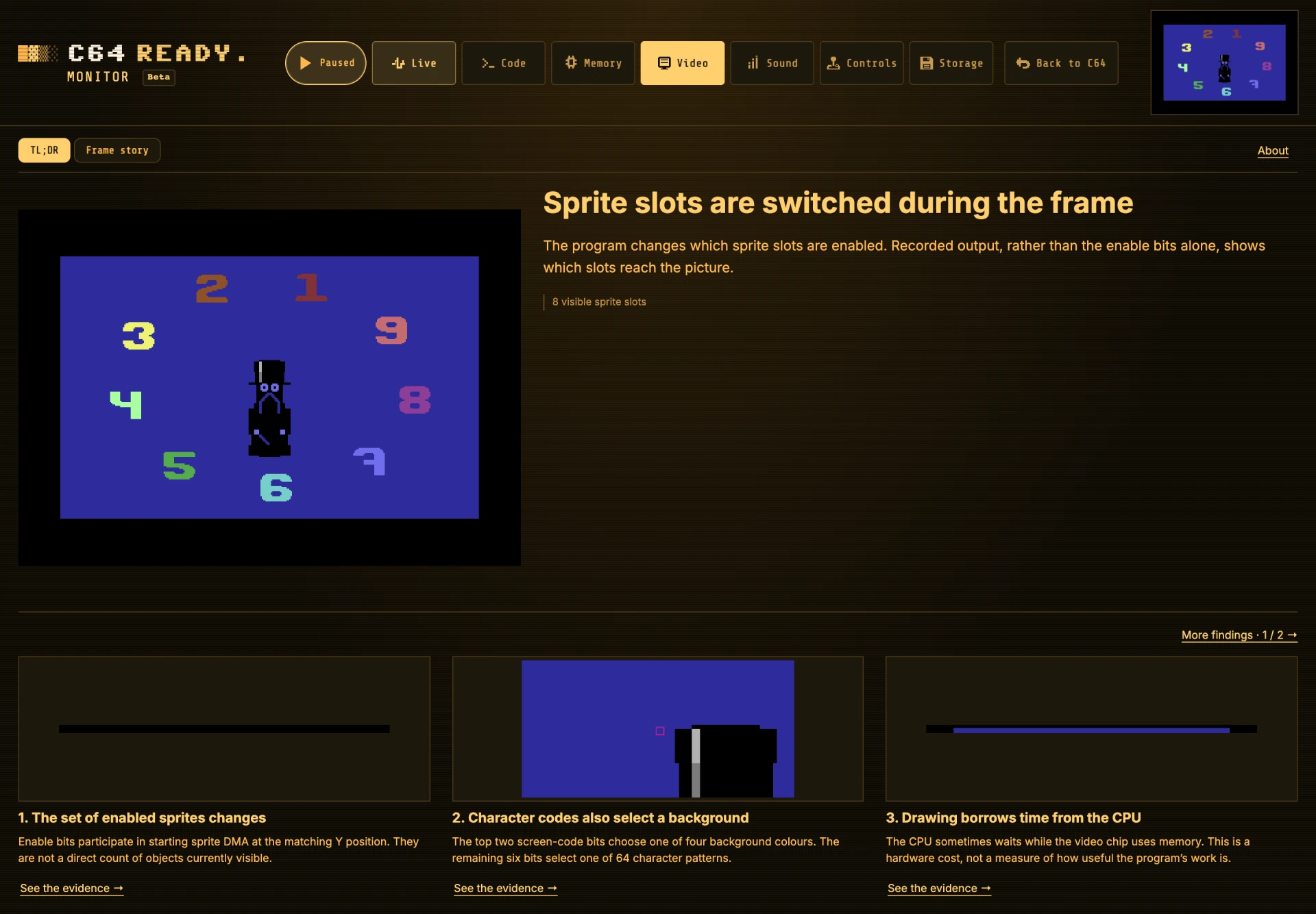
Selecting Video always opens TL;DR. Direct evidence links still open the relevant detail. The buttons at the top switch between it and Frame story, with the selected view highlighted.
- TL;DR holds the shared frame and gives a short explanation with picture grabs.
- Three enlarged cards introduce different mechanisms below the smaller picture. More findings, above the cards, cycles through additional evidence without adding a longer page.
- Click a picture grab or See the evidence below it to open its explanation, then follow it into the frame story or pixel inspector. Headings remain plain text.
- The text comes from recorded facts and fixed rules, with no AI or demo recognition.
- Resume returns to Frame story, where recordings can refresh again.
| Finding | What it can explain |
|---|---|
| Graphics | Character patterns, bitmap colours, mixed modes and black output from invalid modes, backed by matching pixels. |
| Controls and memory | Changes to scrolling, the screen window, display enable and graphics-memory selectors. |
| Sprites and borders | Visible layers, uncovered borders, source changes, priority, expansion and colour-mode controls. |
| Timing | Screen fetches, extended sprite fetching, ghost-byte output and recorded CPU waits. |
Control changes describe what was written, not proof that a particular shape moved or changed colour. Missing or conflicting pixel evidence stays unresolved.
Follow the frame story#
Start with the numbered stops below the picture. Scroll the strip or use Previous change / Next change to follow the whole recording, including later setting changes, sprite sources and the bottom border. Writes on the same raster line share a stop, and consecutive lines with the same setting sequence form a range. Each recorded write remains available. This frame groups observations by topic.
- Select a stop to pause the C64 and hold the shared recording.
- Selected change connects recorded evidence, VIC rules and a strip of the picture.
- For changed settings, compare the before/written values and choose another occurrence.
- Follow the recorded instruction into Code, a source into Memory, or the relevant rules.
- The border story separates top, bottom, left and right, with uncovered positions and recorded sprite output. Select an edge to explain a pixel there.
- Previous change / Next change move between observations. The slider still selects any cycle.
- Play replay advances the selected story stop as it passes each change. Next change continues from that point.
The story is computed from this recording, with no program recognition or AI. A write alone does not prove a visible change. Picture strips show final output, not simulated before/after images. Missing evidence stays unresolved.
Click the picture#
- Click a pixel to open Why this pixel? in the right-hand inspector.
- Focus the picture and use arrow keys, then Enter, for keyboard inspection.
- Choose Sprite appearances in the inspector to highlight any of the eight slots.
- Expand Technical evidence inline for the recorded bytes and source limits.
- Follow Inspect captured source in Memory to keep the frame, cycle and address.
The pixel explanation enlarges the selected picture area, highlights the source bit or pair and shows which colour source it selects. Multicolour pairs paint two neighbouring pixels. Recorded output-stage controls follow colour changes within the line. Missing or conflicting source evidence stays unresolved.
Control the recording#
| Control | What it does |
|---|---|
| Pause / Resume | Holds the latest completed recording, or resumes the C64 and automatic recording. |
| Play replay | Pauses the C64 and plays the recording slowly. Replay never clocks the machine. |
| Timeline | Select any cycle in the recording. |
| Previous change / Next change | Pause and move between frame-story observations. |
| Step & speed | Step a raster line or cycle, jump to the next event or change replay speed. |
| Layer checkboxes above the picture | Right-aligned controls for border masks, sprite coverage, bad lines, events and Reveal scan. |
| Live display (top right) | Always shows the current C64 on every page. Click it to pause and inspect the latest completed frame. Pause / Resume is before Live in the menu. |
Selecting a topic, sprite, pixel or cycle keeps that selection when the next recording arrives. It does not pause the C64. Use Pause or Play replay or select a frame-story stop to hold one frame. Leaving sprite details clears its selection and outline.
Choose what to inspect#
| Inspector topic | What you can explore |
|---|---|
| This frame | Picture-led observations, with the frame CPU budget below the timeline. |
| Selected change | Picture strip, recorded changes, hardware explanation and evidence links. |
| Why this pixel? | Border coverage, visible sprite ownership or recorded graphics bytes. |
| Sprite appearances | Coverage and separate source intervals for each slot. Intervals split when DMA stops or the line-end pointer or bank changes. |
| Border | Recorded gates and related writes, with a link to all four edge regions in the frame story. |
| Timing & rules | Rules at this cycle, with the indexed rule catalogue, expandable explanations, evidence requirements and references. |
| Events on this line | VIC writes, raster IRQ assertions and recorded instruction origins. |
| Observed techniques | Observations and possible techniques, labelled separately. Ghost bytes show recorded idle graphics sources, values and timing, with a link to captured Memory. |
The five timing rows have their labels on the left. Click a row label to open its explanation, or click the timing chart to inspect a cycle. Rules and picture use this same cursor, with no separate playback toolbar. Expanding a rule does not change the selected cycle.
Try it with Nine#
Open Monitor during the effect you want to understand. Linus Åkesson’s Nine explanation describes how timed colours, idle graphics and sprite layers work together. Compare those mechanisms with the current recording:
| Look for | Follow in the frame story |
|---|---|
| Digits above the usual screen | Uncovered border rows, then a recorded pixel source. |
| The all-border screen | Compare all four edge regions, visible sprite slots and changing source intervals. |
| Repeated graphics with different colours | Idle-source bytes, colour writes and matching output-stage pixels. |
| Sprites continuing vertically | Long DMA runs, row-counter changes and separate source intervals. |
| Carefully timed code | CPU availability and the BA/AEC rules. |
Different parts of Nine produce different findings. The analyzer does not infer nine objects, author intent, multiplexing or a crunch trigger from appearance alone.
Find a timing rule#
In Timing & rules, search by name, rule ID or Bauer section. Filter the catalogue to checked rules, mismatches or missing evidence in this frame. Expected half-cycles explains the PAL bus schedule, beam X comparisons and logical display state from captured controls. These are reference predictions, kept separate from measured matches.
Each expanded rule shows its required inputs and frame totals. Transition rules also show the recorded values at the selected cycle. Use Show next mismatch to jump directly to the failing evidence.
Help and evidence limits#
How to use Video and Evidence & limits open small dialogs. Close with × or Escape to return to the workspace. Use Memory for current screen, character and sprite sources. Video's inspector stays tied to the captured frame.
| Evidence | Limits |
|---|---|
| Timing rules | Fixed Bauer predicates check DEN latching, bus windows, graphics counters, sprite sequencing, raster IRQs and refresh addresses and counters. Matrix-slot and fetched sprite-block checks link reads to their selected sources. No AI is used. |
| Border checks | Checks all six comparator rules and the cycle-17/56 CSEL cancellation conditions. Full mask comparison still requires stable controls. |
| Pixel source | Retains the source byte and output-stage controls through graphics-mode, charset, scroll and colour changes. All eight graphics modes have colour and foreground checks. Normal sprite source tracing remains separate. |
| Grouped sprite reads | Verify pointer-selected blocks, three-byte order, counter progression and DMA termination, without claiming individual half-cycle timing. |
| Transition checks | Register readback, sprite counter reloads and byte order, collision interrupts, raster comparison edges and lightpen rearming use recorded inputs and outputs. Sprite output, priority and collision checks remain separate. |
| Memory and bus | Checks actual VIC RAM/character-ROM routes, fetch-driven bus values, colour RAM high bits and writes beneath the processor port. |
| Missing stages | Grouped sprite reads do not prove half-cycle timing. Exact sprite X-comparator phases are not captured. The rendering-stage display flag cannot prove entry before cycle 14. Analog and unstable VMLI behaviour remain outside these checks. |
| Renderer-source sample | Labelled separately from a timed bus fetch. The selected paint and line-end correction determine the source. If its decoded colour or foreground class disagrees with the final capture, the explanation stays unresolved. |
| Technique finding | Repeated writes alone do not prove a technique or the program's intent. |
| Reveal scan | Reveals recorded final pixels, rather than simulating sub-cycle output. |
Click graphics before and after a raster effect to compare their recorded sources. An empty graphics shifter is explained separately from a fetched byte. These explanations use the captured frame, never current RAM as a replacement.
Sprite coverage can include pixels hidden behind foreground graphics. Related writes and line-end samples do not prove which write caused every visible effect. The timing chart covers all 312 PAL lines, including margins outside the picture.
Ghost bytes#
When the graphics sequencer is idle, it can repeat one byte instead of fetching normal character or bitmap data. Video checks the recorded bank, ECM setting, sequencer state and bus reads. The source is bank + $3FFF, or bank + $39FF with ECM.
- Observed confirms matching idle graphics reads.
- Candidate means nonzero text-mode data coincides with open border gates.
- Neither label proves which final pixels appeared or the programmer's intent.
- Ordinary discarded idle bus reads are excluded. Missing or conflicting evidence is identified explicitly.
Sound: inspect the SID voices#
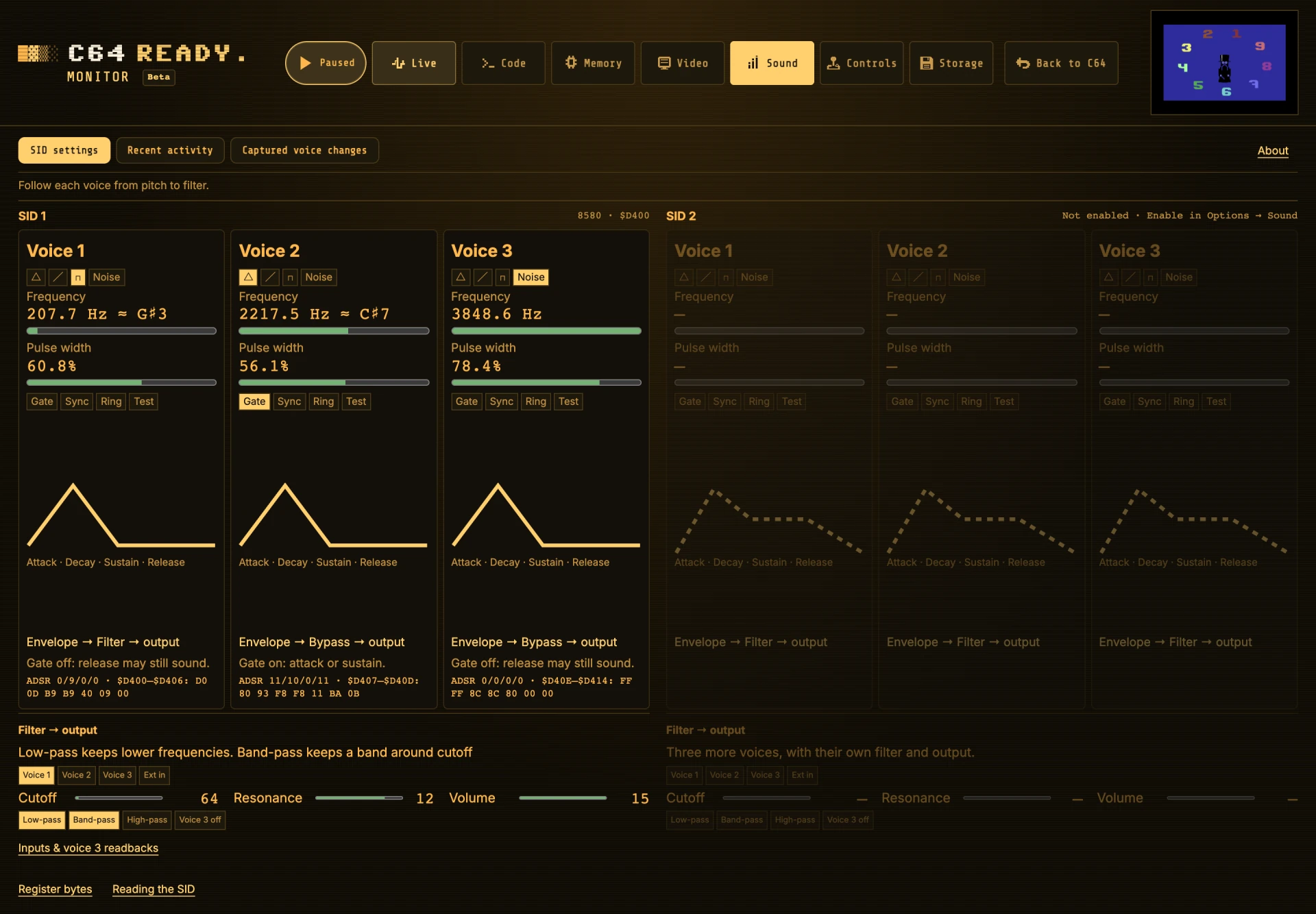
Sound supports one or two SID chips, with each chip's model and address shown. On desktop, all voices are visible and SID 1 keeps the same width with one or two chips. When SID 2 is off, faded cards preview its three extra voices and filter. Recent activity also keeps a faded SID 2 column, with empty plots until enabled. Enable it with SID2 in Options → Sound. Each voice explains its settings beside its readings. Numeric text refreshes more slowly than the meters, so it stays readable. Pause for exact held settings. Follow each voice through its envelope, filter or bypass path, and output.
| Area | Details |
|---|---|
| Voices | Frequency, approximate note for simple tonal settings, pulse width percentage, waveform, gate, sync, ring and test. Each box includes register evidence. |
| Envelopes | A contained schematic labels attack, decay, sustain and release, with the exact four settings below it. |
| Filter and output | Routing, cutoff, resonance, modes, voice-3 suppression and volume. |
| Readbacks | POTX/POTY, OSC3 and ENV3 without read side effects. |
| Recent activity | Up to eight emulated seconds of actual writes, with separate pitch and gate plots for each chip. Vertical ranges retain brief pitch changes. Descriptions summarize changes every two seconds. Pause holds the history and updates the description. |
| Captured voice changes | Step between recorded SID writes with Previous, Next or the slider. All voice settings and graph markers follow the selected moment, including filter and volume changes. Return with SID settings. |
These are settings and shadow readbacks, not measured audio levels. Envelope shapes are illustrations, not timed audio traces. Gate off can still sound during release, while gate on does not prove an audible output. Captured writes show how settings change, without reconstructing the sound waveform. Moving the captured slider pauses updates and holds that recording. Frame start shows the initial settings. Highlighted voices received a write at the selected moment. Upper traces show pitch settings, lower bars show gate on. Incomplete recordings show the available writes without inventing later voice settings. Recent history starts when Monitor opens. Reset, restore, SID routing changes or leaving Monitor start a fresh history. A full buffer is labelled explicitly.
Storage: follow the connected devices#
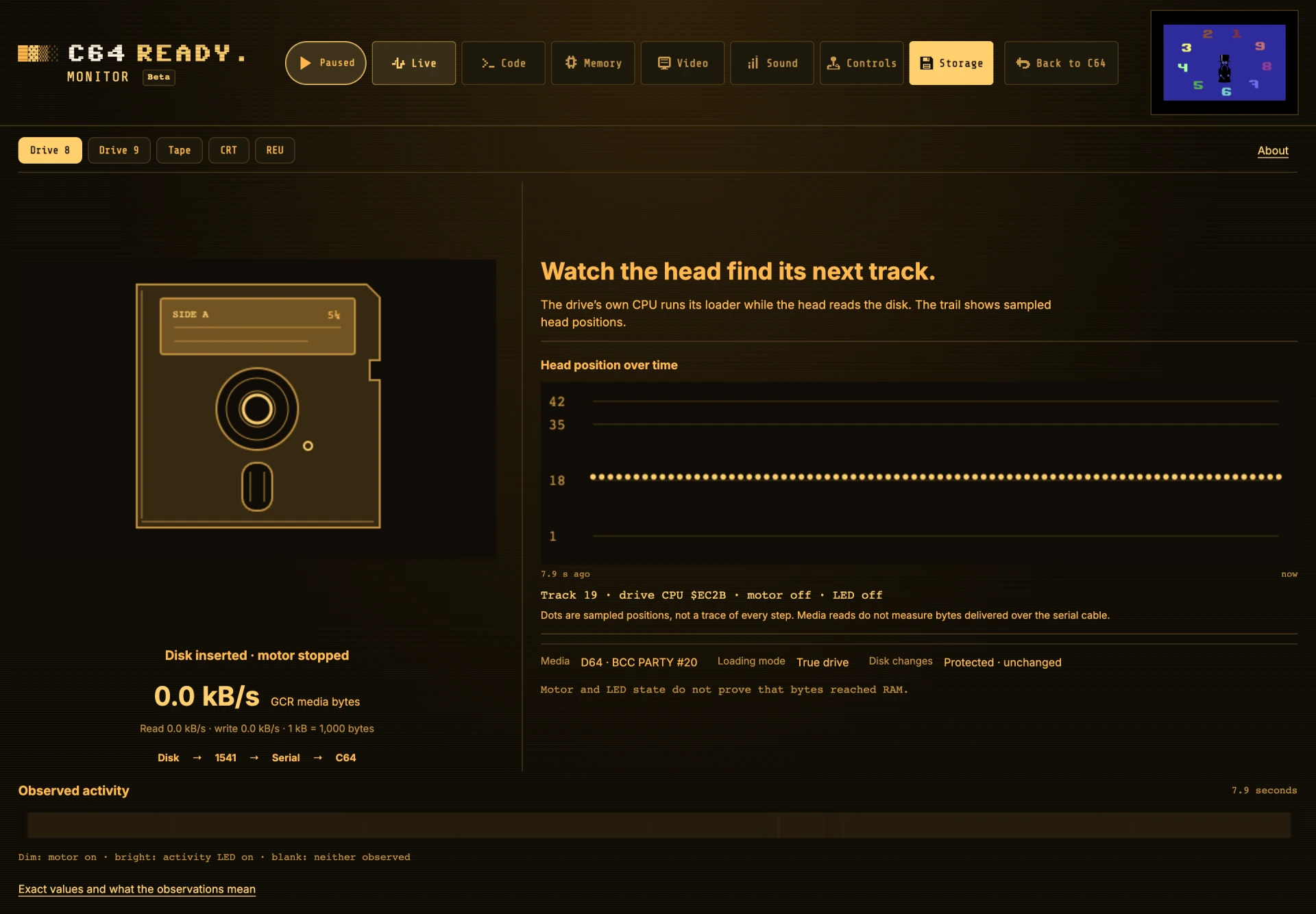
Storage opens on an active device, or an attached device when idle. Your selection then stays fixed while you inspect it. The rate readout shows kB/s, with separate read and write values. The Live card shows the same rate below its device buttons. One kB means 1,000 bytes. Rates use up to one second of wall time and fall to zero when traffic stops, including while paused.
| Rate label | Bytes counted |
|---|---|
| GCR media bytes | Framed disk read-channel bytes and bytes written to the surface, including repeated reads. |
| File/channel bytes | Accelerated LOAD payload and virtual drive data channels. |
| TAP stream bytes | Encoded pulse bytes consumed during playback or produced while recording. |
| CPU ROM reads | CPU accesses to mapped cartridge ROM, excluding inspection. |
| REU DMA bus bytes | C64-side reads and writes, including verification and both sides of swaps. |
These streams measure different work. Disk and tape rates are not decoded program-loading speeds. Counters run only while the Monitor is open and visible.
| Device | What you can inspect |
|---|---|
| Drive 8 / Drive 9 | Media, hardware state, head position and accelerated loading mode. Recent completed accelerated LOADs show their byte count and destination. |
| Tape | Inserted tape, transport state and position. |
| CRT cartridge | Type, mapping and bank, with a link to CPU-visible code. |
| REU | Capacity, transfer settings and controller flags. |
| Captured REU transfers | Recorded C64-side accesses, expansion addresses and command types. |
The observation strip retains up to eight seconds at every sampling rate and shows its actual observed span. Drive activity does not prove a particular file was loaded. Tape position is not program-loading progress. Cartridge mapping is not a count of ROM reads, and a REU read alone does not prove a completed copy.
Completed LOAD links open current memory, which may have changed since loading. I/O and special mappings are labelled separately from confirmed RAM writes. Hardware loader traffic does not establish a RAM destination by itself.
Shared snapshots and recorded frames#
| Kind of information | What it means |
|---|---|
| Live display | The C64 picture updates at browser refresh rate. |
| Sampled live values | Changes between samples can be missed. RAM, chip settings and device readings share the selected 1, 10, 25 or 50 samples/s rate. |
| Shared detailed frame | One recording supplies replay, rule analysis and historical memory, instruction, fetch, sound and REU evidence across sections. Detailed reports are calculated when opened. |
| Captured RAM | Reconstructed from the initial snapshot and recorded changes. Incomplete recording, host paste, PRG or command injection, or accelerated load/status writes make reconstruction unavailable for that frame. |
Recording has a temporary host CPU cost. Evidence labels and explanations do not change emulated timing or how the C64 picture is generated. Missing or conflicting evidence is reported rather than guessed.