Docs / User Guide / Options and setup
Options and setup#
Every setting in the Options dialog, and the first-run setup. Part of the User Guide.
Options#
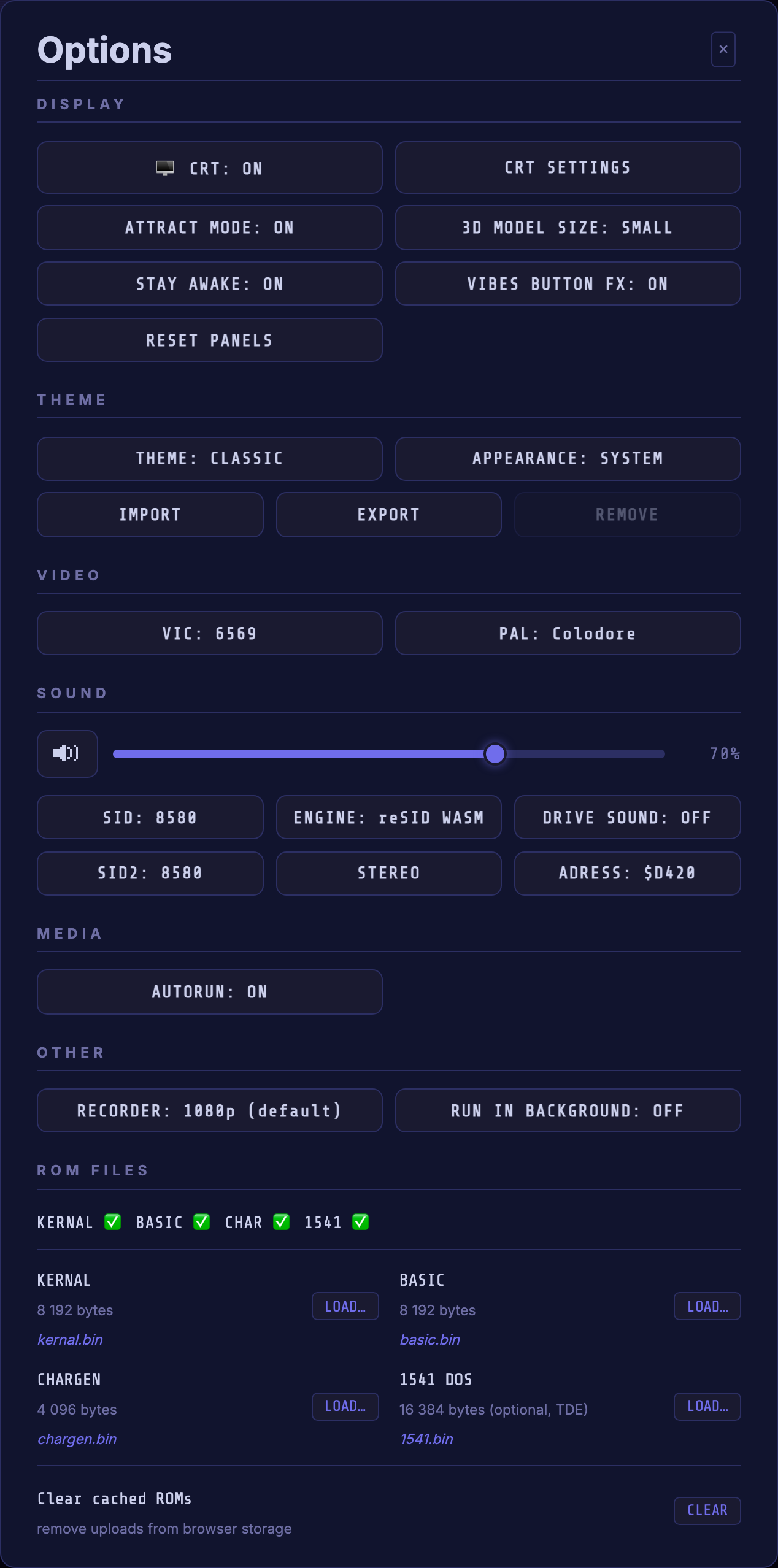
Opened with ⚙ OPTIONS. Hardware, display, sound and other settings, plus ROM management. All choices persist in this browser.
Display#
| Button | What it does |
|---|---|
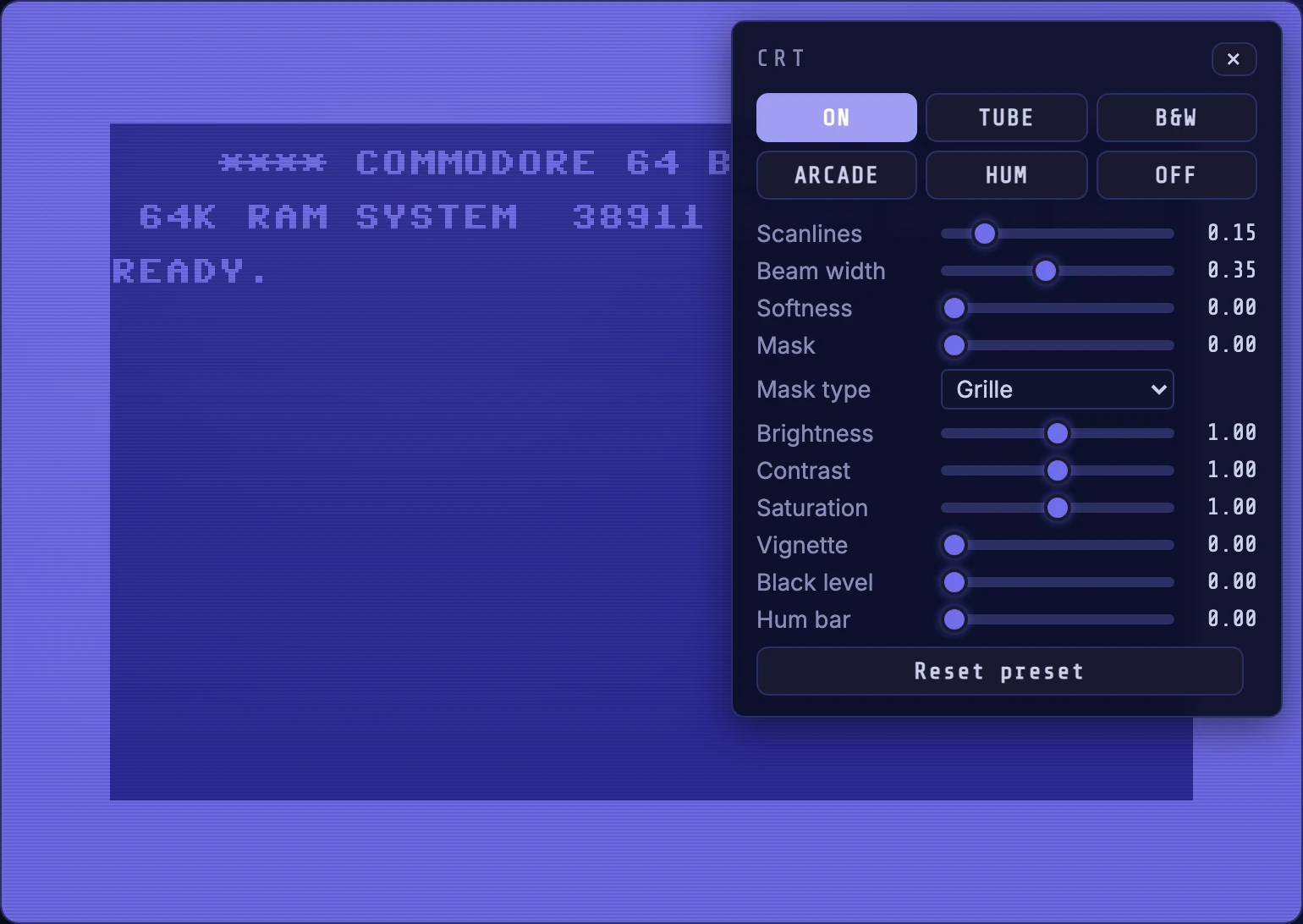
| 🖥 CRT | Cycles the CRT look: ON (basic scanlines) → TUBE (phosphor mask + vignette + glow) → B&W (monochrome tube) → ARCADE (bright, sharp scanlines) → HUM (tube look with a slow rolling mains-hum bar) → OFF (flat, crisp pixels). |
| CRT SETTINGS | Opens the CRT settings panel (also Cmd/Ctrl+Shift+F): the six looks and a slider for every setting behind them, remembered per look, with Reset preset. Drag it by its title bar; Esc closes it. The logo in the header follows the scanline, brightness, contrast, saturation and hum sliders too. |
| ATTRACT MODE | On by default: plays an animated attract-mode demo on the screen while the machine is powered off. Turn it off to show a simple "press power to boot" hint instead. It also steps aside on its own if your system asks for reduced motion, or the machine has no GPU to spare, you get the hint instead. |
| 3D MODEL | Which model the VIBES viewer loads: SMALL (default, a light model that's easy on memory everywhere), AUTO (picks by device: lighter on phones/tablets, detailed 4K on desktop), or LARGE (force the 4K model). Takes effect next time you open VIBES. |
| STAY AWAKE | Keeps the screen awake while a demo runs, so the device doesn't dim or lock (which would pause the emulator). |
| VIBES BUTTON FX | On by default: runs a tiny demo inside the VIBES button itself: a field of dark pixels drifting through ten sine patterns in 3D. Turn it off for a plain button. |
Theme#
| Button | What it does |
|---|---|
| THEME | The colour theme: CLASSIC (the default), GEOS, BREADBIN, PHOSPHOR, OUT RUN, COMMANDO, then any you have imported. See Themes. |
| APPEARANCE | SYSTEM (the default) follows your device's dark or light setting, and changes with it; DARK and LIGHT keep one. The screen, the CRT looks, the splash and Retro Vibes look the same in both. The appearance button in the header does the same. |
| IMPORT / EXPORT / REMOVE | Load a theme file, save the current theme as a complete file, or remove an imported theme from this browser. |
Video#
| Button | What it does |
|---|---|
| VIC | Switches the VIC-II graphics chip: 6569 (original PAL, NMOS breadbin) ↔ 8565 (late PAL, HMOS C64C/C128; adds a 1-cycle pixel-pipeline delay some demos use). |
| PAL | Switches the colour palette: Colodore (the modern VICE default, sharper and more saturated) ↔ Pepto (the classic 2001 measurement-based palette). Applies within one frame. |
Sound#
The master volume control at the top of this section sets how loud everything (SID and drive sounds) plays. Drag the slider to set the level, or click the speaker icon on its left to mute. The scale is perceptual (mid-slider is roughly half as loud) and defaults to 70%, which leaves headroom so the emulator sits closer in loudness to other apps. Raising the volume from silent also un-mutes; while muted, the speaker shows a red ✕ and playback keeps running silently.
| Button | What it does |
|---|---|
| SID | Switches the SID sound chip model: 6581 (original) ↔ 8580 (later revision). |
| SID2 | Cycles OFF → 8580 → 6581. Its separate row also has STEREO/MONO and an ADRESS toggle (default $D420). Stereo sends SID 1 left and SID 2 right. |
| ENGINE | Selects the SID sound engine: reSID WASM (default) and reSID JS sound identical; the WASM build uses far less CPU, and switches to reSID JS automatically if WebAssembly can't start. |
| DRIVE SOUND | Plays synthesized 1541 sounds (motor hum, head-stepper clicks, fast-load chatter) while the drive is active. |
The mix and address buttons are disabled while SID2 is off.
The ADRESS toggle cycles $D420, $D500, $DE00 and $DF00, skipping
conflicts while enabled. Tune headers can also select other $20-aligned
addresses in $D420-$D7E0 and $DE00-$DFE0. Expansion addresses
$DE00-$DFFF require an empty cartridge slot; $DF00-$DFFF also conflicts with
RAM Expansion. A single SID plays centered at the same volume in either mix mode.
Browser recordings retain the stereo mix. Saved states restore both chips;
older states restore a single SID.
The two reSID engines are the same port of VICE's reSID, Dag Lem's transistor-level model of the real chip's oscillators, envelopes, analog filter and DACs, verified against VICE recordings, running as JavaScript or compiled to WebAssembly. What you hear is the modelled chip, not a lookalike synthesizer.
Audio runs at 48 kHz, the usual device rate on modern hardware. If sound trails the picture (noticeably in Safari on macOS), set your output device to 48 000 Hz in Audio MIDI Setup (Applications ▸ Utilities). A mismatched system rate makes the browser resample the SID stream, which adds a fixed lag.
Media#
| Button | What it does |
|---|---|
| AUTORUN | Starts media automatically when enabled. PRGs loaded through a drive run BASIC or a BASIC SYS stub; other machine-code PRGs stay at READY.. Turning it off leaves loading and starting to you. See Loading a .prg for the fallback without a drive ROM. |
Other#
| Button | What it does |
|---|---|
| RECORDER | The ceiling for what ● RECORD captures, cycling 720p → 1080p → 1440p → 4K → NATIVE. 1080p is the default. A shared surface larger than the ceiling is scaled down to fit inside it, aspect ratio intact; anything smaller is recorded as it is. NATIVE applies no ceiling at all. The choice takes effect on the next take, not the one already running. |
| RUN IN BACKGROUND | OFF (default): the machine pauses the moment the app leaves the foreground (another window takes focus, the tab is hidden, the phone locks) and resumes when it comes back. ON: it keeps running and playing through all of that. A hidden tab is only allowed to run at full speed while it is audible, so keep the sound on; muted, the browser slows it to a crawl until you return. |
See Recording for what the ceiling is for.
ROM Files#
The C64 needs Commodore's KERNAL, BASIC and CHARGEN ROMs (plus an optional 1541 ROM for True Drive Emulation). A status line shows which are present. On first run the Setup dialog walks you through loading them.
| Control | What it does |
|---|---|
| LOAD… (per ROM) | Loads a ROM file from your device for KERNAL, BASIC, CHARGEN or 1541 DOS. |
| CLEAR | Removes all cached ROM uploads from browser storage. |
⚠️ Commodore's ROMs are copyrighted and not bundled. Supply them legally; see Getting Started.
Setup C64 READY.#
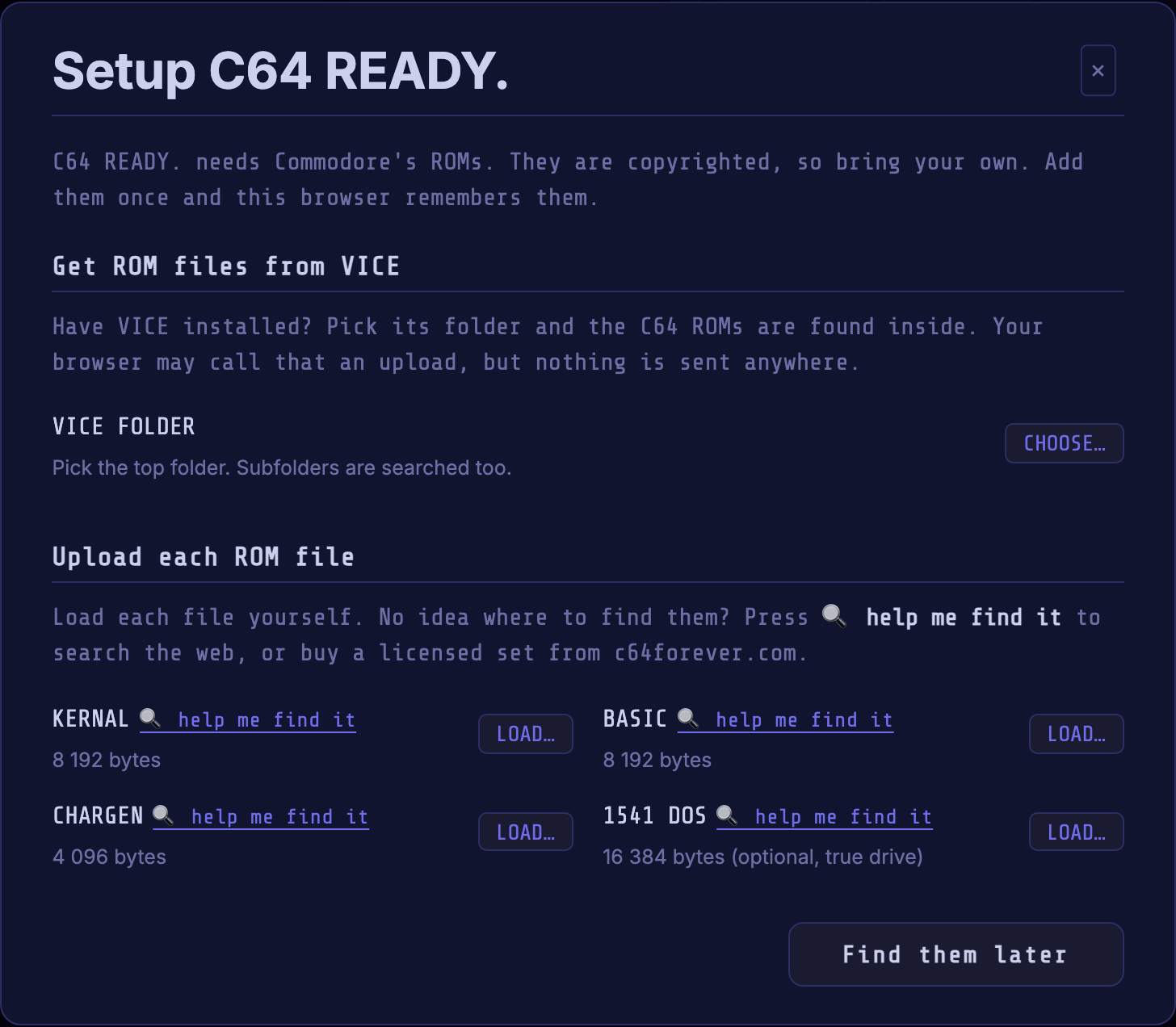
Appears automatically on first run, when no ROMs are found; the C64 can't boot without them. The closing button reads Find them later until the three required ROMs are in, then Done.
Getting Started has the walkthrough: the two loading routes, the filenames and the licensing note.