Docs / User Guide
User Guide#
A tour of every panel, dialog and button in C64 READY. For a walkthrough from blank screen to running demo, start with Getting Started; for what the machine can do, see Features.
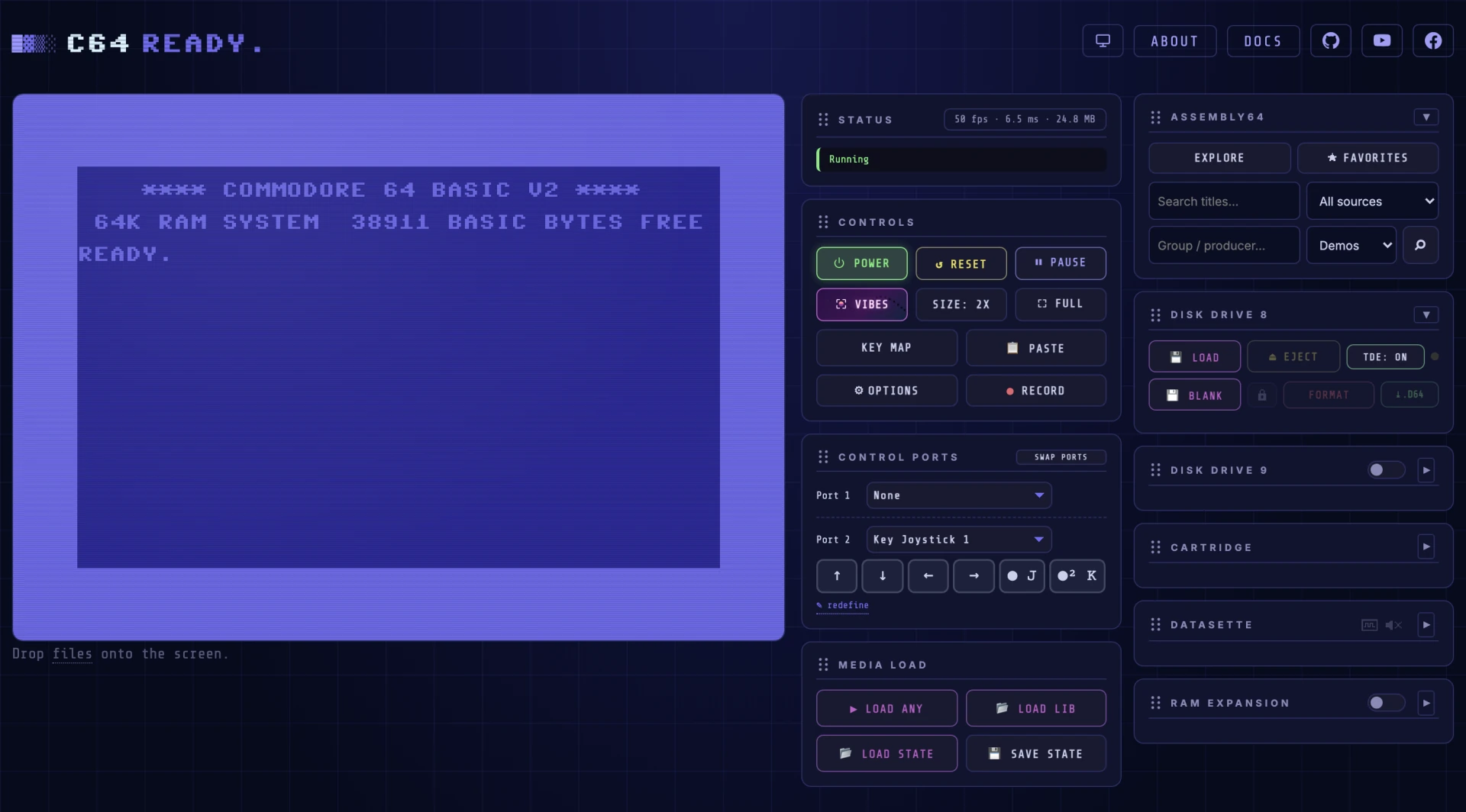
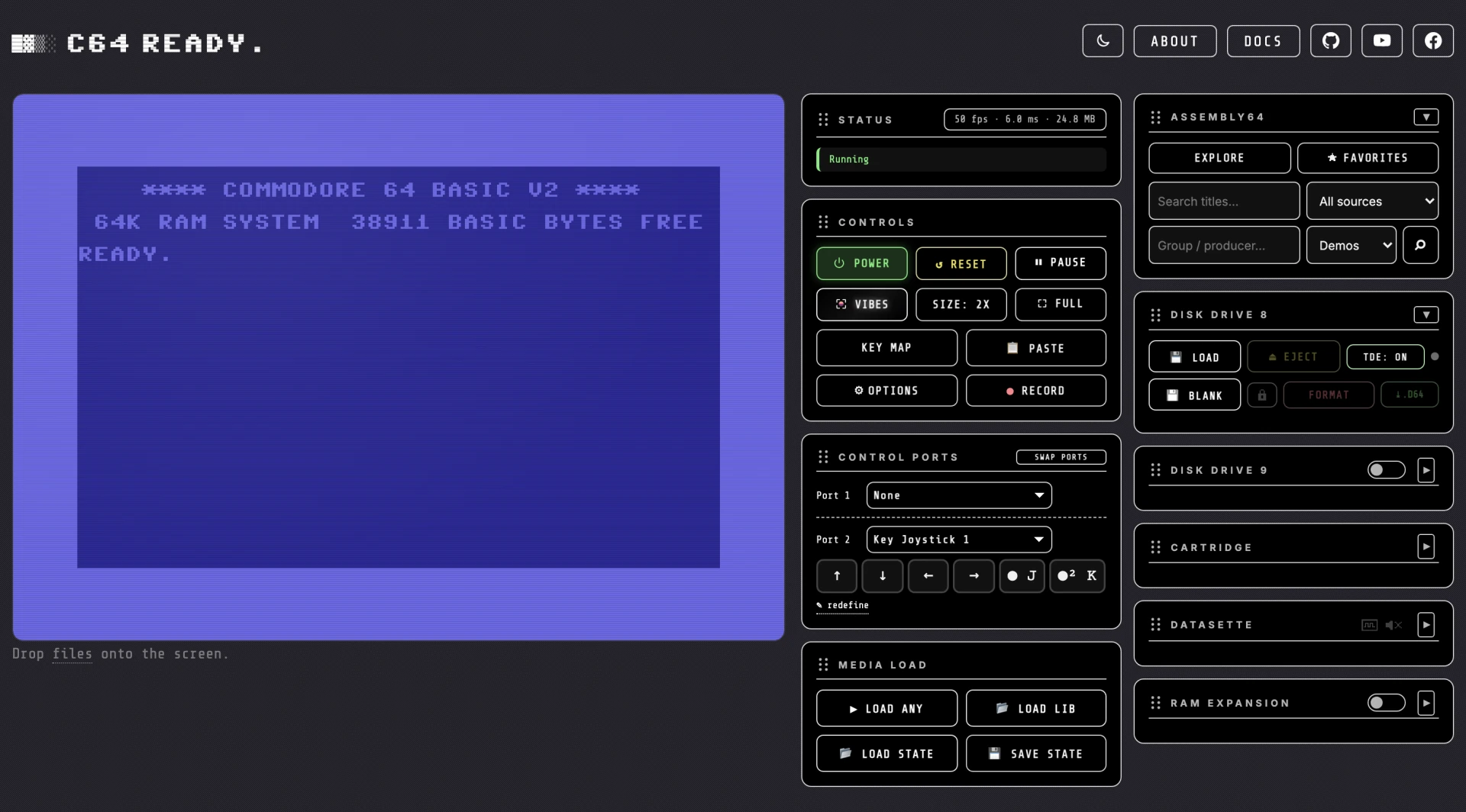
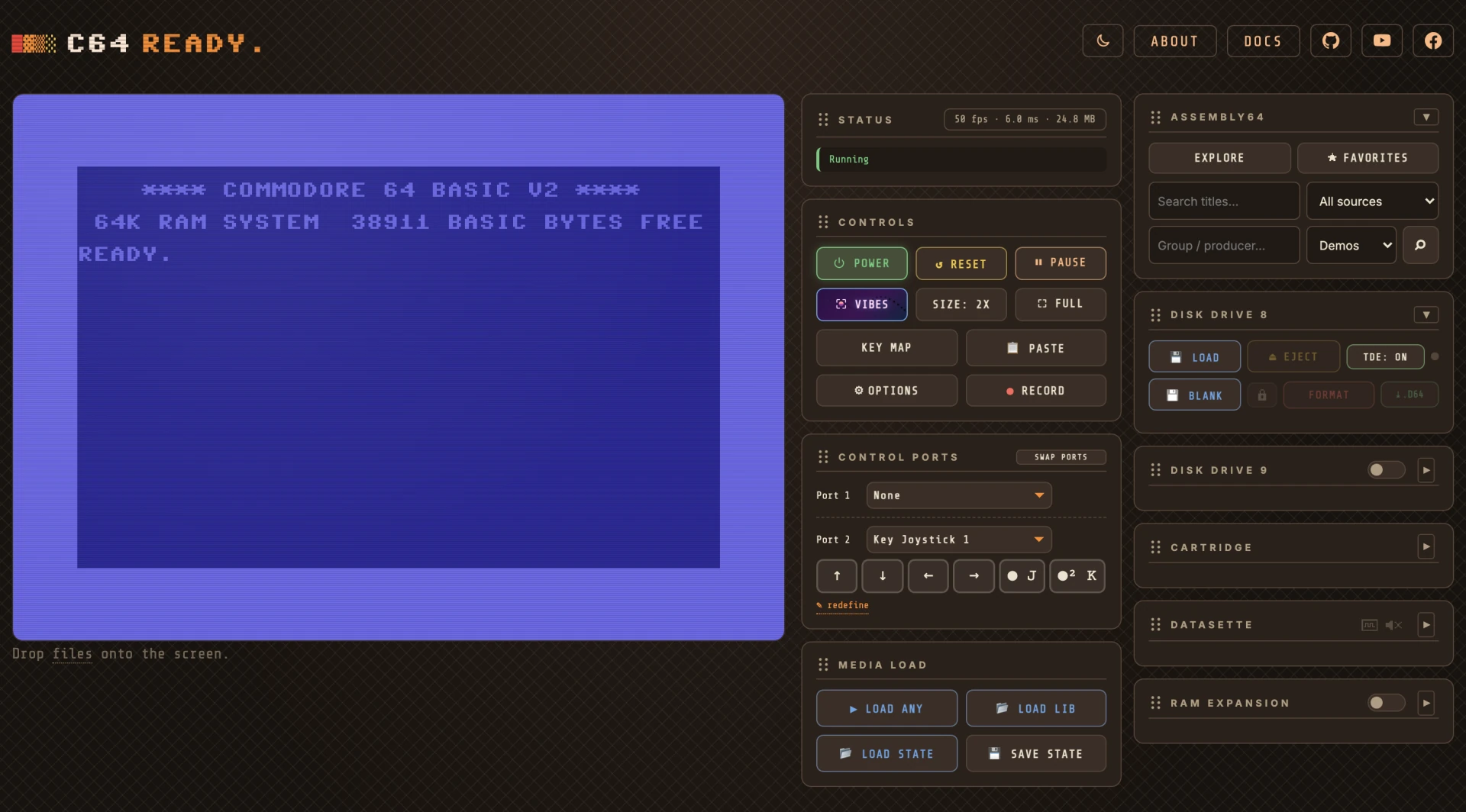
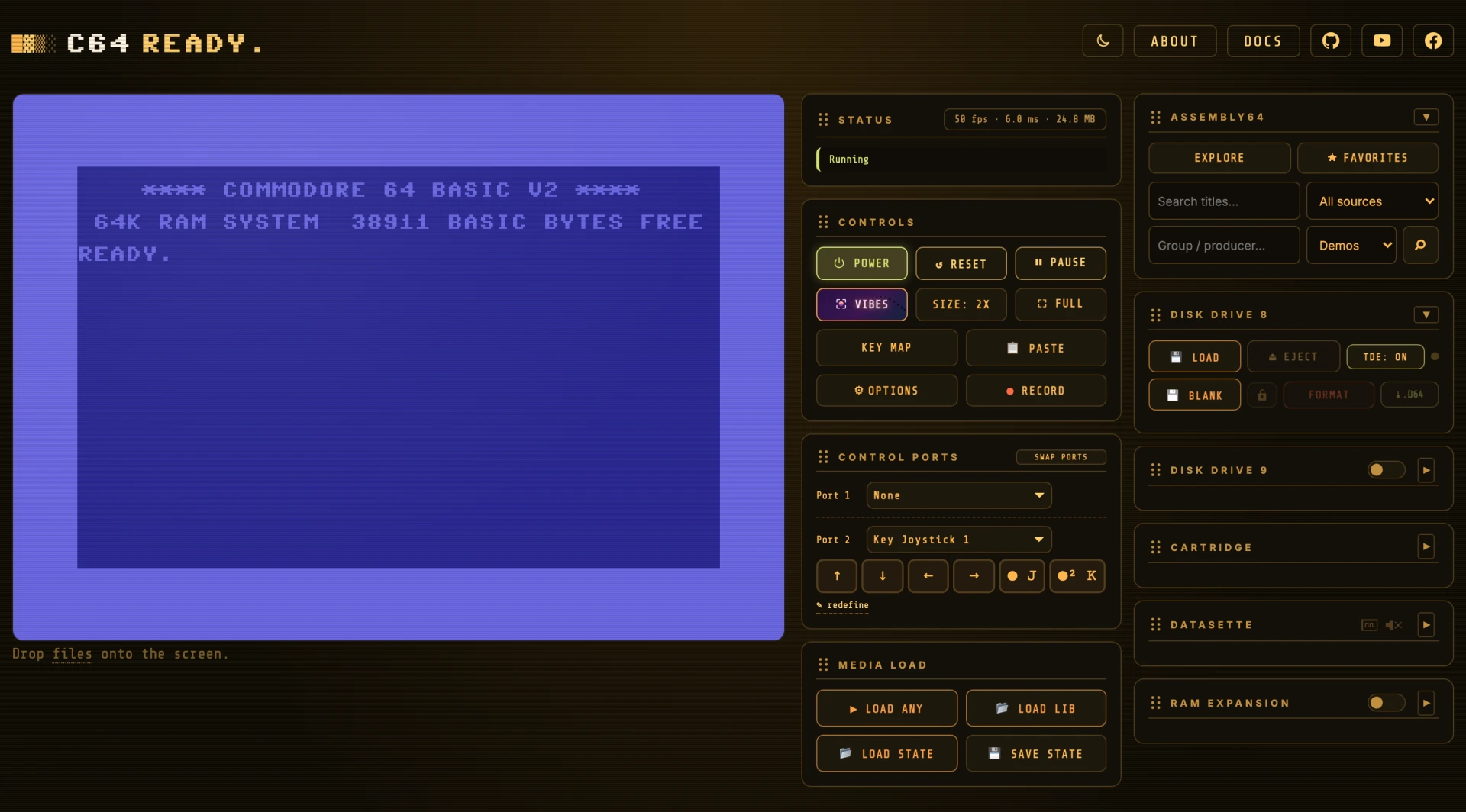
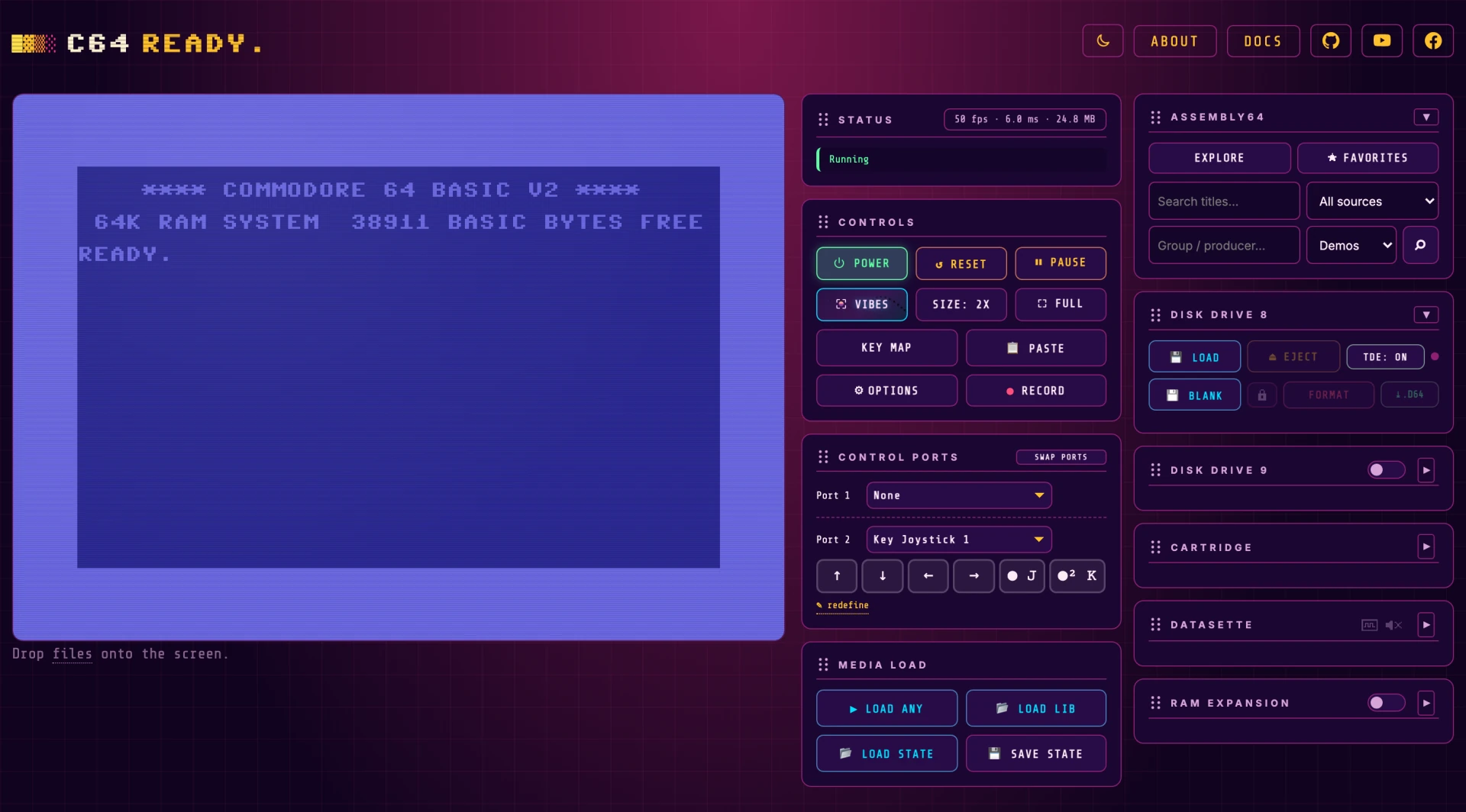
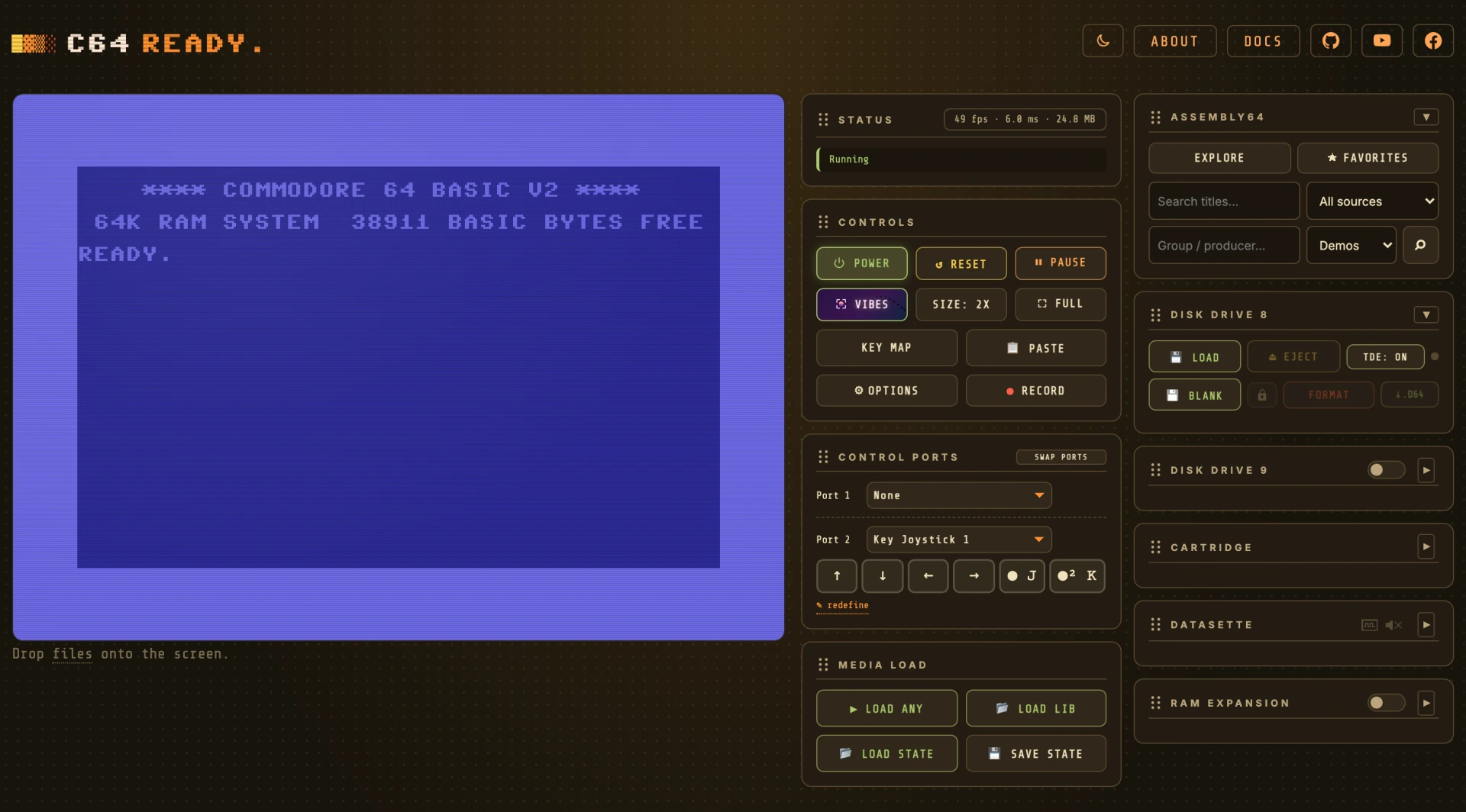
Three regions: the header (branding and links), the display (the emulated CRT), and the side panel of control cards.
The panel is two columns at the default 2X, narrows as the picture grows, and is a single column at MAX. On a phone it moves below the screen. Most of it stays greyed out until the ROMs load and you power on.
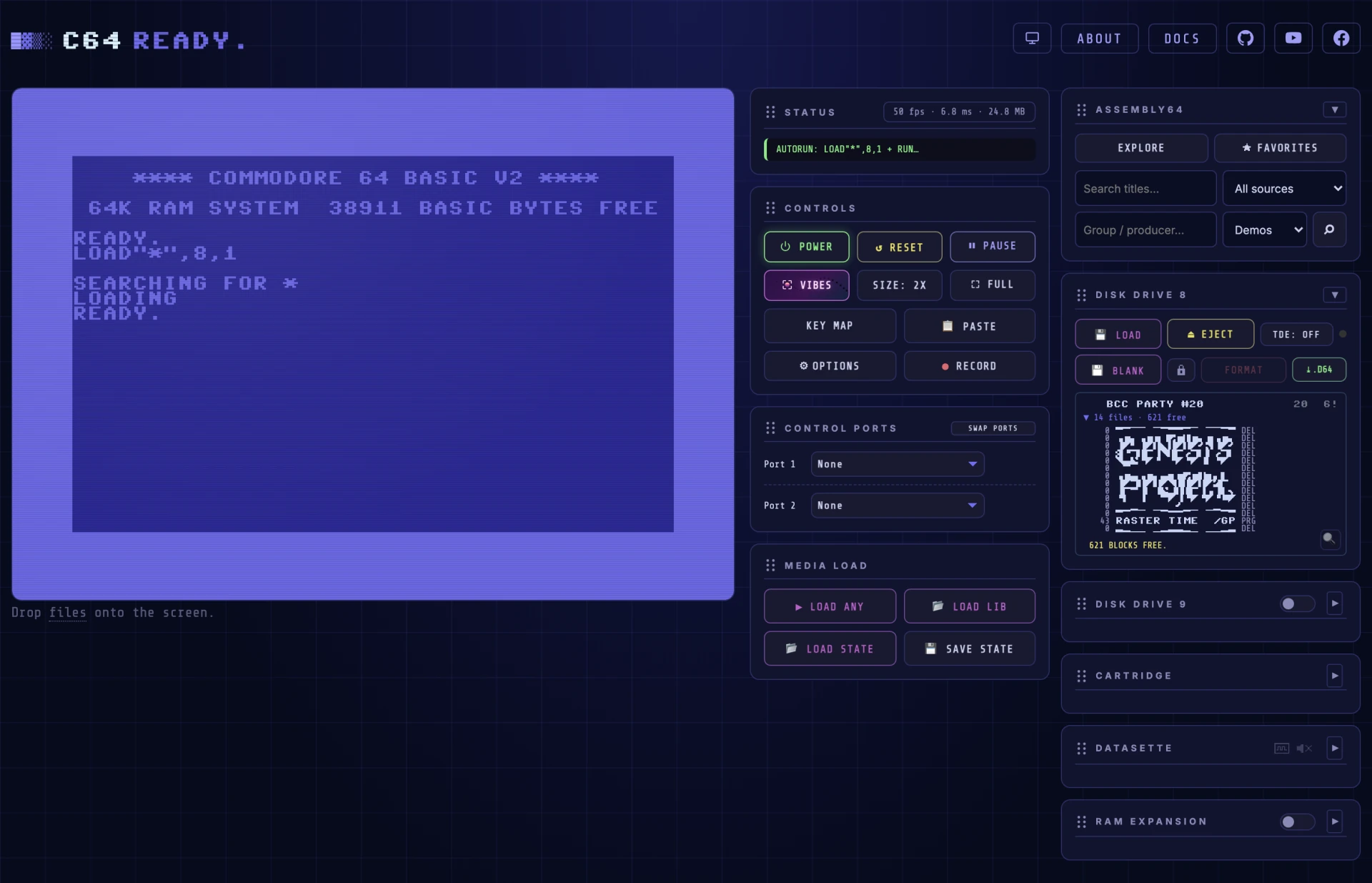
The same interface with a demo running:
Topics#
- The interface: The header, the display and the cards that run the machine, and how to arrange them.
- Media and drives: Loading programs, disks, cartridges, tapes and tunes, and the Assembly64 catalog.
- Input: Joysticks, mice, paddles and the keyboard and touch sticks on the two control ports.
- Looks and Retro Vibes: Themes and their file format, the Retro Vibes 3D viewer, and recording what you play.
- Options and setup: Every setting in the Options dialog, and the first-run setup.
- The command line: The
c64rdytool for your cassettes, cartridges and disks: convert, inspect, repair and run them in batches.
Updates#

C64 READY. is a Progressive Web App, so it refreshes itself in the background. When a newer version has been downloaded and is ready to run, a toast appears at the bottom of the screen:
| Button | What it does |
|---|---|
| Reload | Applies the update and reloads into the new version. |
| Later… | Dismisses the toast and keeps your current session running; the update applies automatically the next time you launch the app. |
Your running machine is never swapped out from under you; nothing changes until you choose Reload (or relaunch later).
Keyboard shortcuts#
App shortcuts#
Hold Cmd+Shift on a Mac, or Ctrl+Shift on Windows and Linux. Both work on every platform.
| With the modifier | Action |
|---|---|
| V | Pastes the clipboard into the C64 as keystrokes, same as PASTE. |
| F | Opens CRT SETTINGS (also a button in Options): the six looks and a slider for every setting behind them, remembered per look, with Reset preset. Drag it by its title bar. Press again, or Esc, to close. |
| Y | Switches to the next theme, the same as THEME in Options. The status line shows which one. |
| Z | Zooms the VIBES button to 10x, so the little pixel demo running inside it can be watched properly: magnified, and running at your display's refresh rate. It stays a working button: clicking it opens Retro Vibes. Press it again (or Esc) to send it back. |
| X | Opens Retro Vibes in Studio mode: the 3D scene and the C64 READY. logo, nothing else. Press it again to bring the controls back. The mode is remembered between visits. |
Only those letters are borrowed. Ctrl on its own is a real C64 key and still reaches the machine, and a text box keeps its own keys.
The same list is in the KEY MAP dialog under App shortcuts, which is generated from the shortcuts themselves and so is always current. It adds S, a debug snapshot, handy when reporting a bug.
Reserved keys#
| Key | Action |
|---|---|
| Esc | Closes the topmost dialog, or the 3D viewer. Also leaves fullscreen, which the browser does itself. |
| F9–F12 | RUN/STOP · C= · CLR/HOME · RESTORE (see Key Map). |
Everything else on the physical keyboard is passed straight through to the C64 per the Key Map while the screen has focus. Tab moves from the screen to the rest of the interface, where Enter and Space press the focused button and the keys stay with it; click the screen, or Tab back to it, to type on the C64 again. A mouse click on a button hands the keyboard straight back to the screen.